February 14, 2025
How to Generate Consistent Mascots With AI
A practical, step-by-step pipeline for creating consistent AI mascots. Includes modular JSON prompts, visual references, and a complete production workflow.
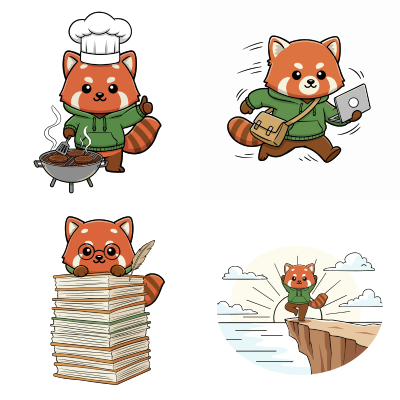
This is the process svgapp uses.
We automate this entire process so you can focus on building amazing products.
Sign Up Now
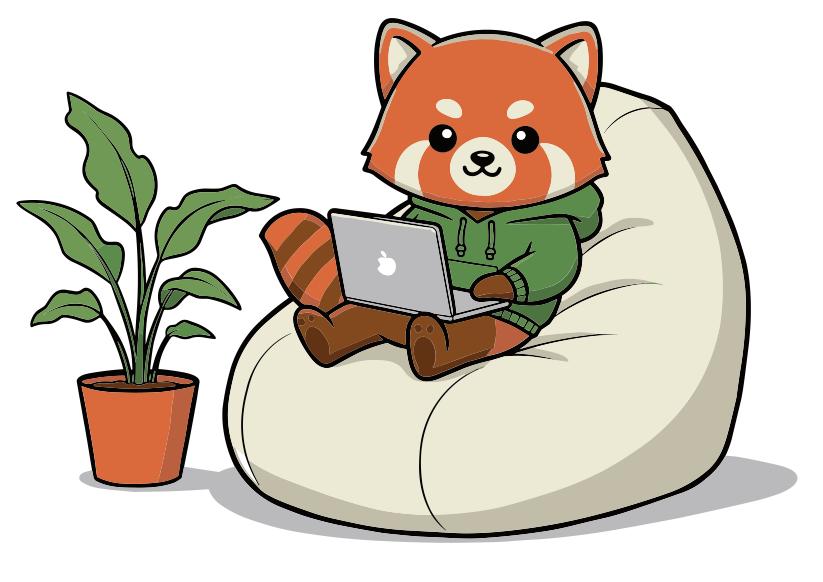
AI can create a mascot once. Getting it to create the same mascot twice is nearly impossible. Every generation drifts on proportions, colors, and style.
This guide gives you a complete, step-by-step pipeline to generate consistent mascots across an entire pose library. You’ll learn how to create reference materials, build reusable prompt systems, and scale production without losing quality.
What you’ll need:
- An AI image generator (Nano Banana, Midjourney, DALL-E, Stable Diffusion, or Flux)
- 30-60 minutes for initial setup
- A reference image of your mascot. This can be a rough sketch or another AI-generated image.
- Your brand color codes (hex values)
Step 1: Create Your Anchor Reference Image
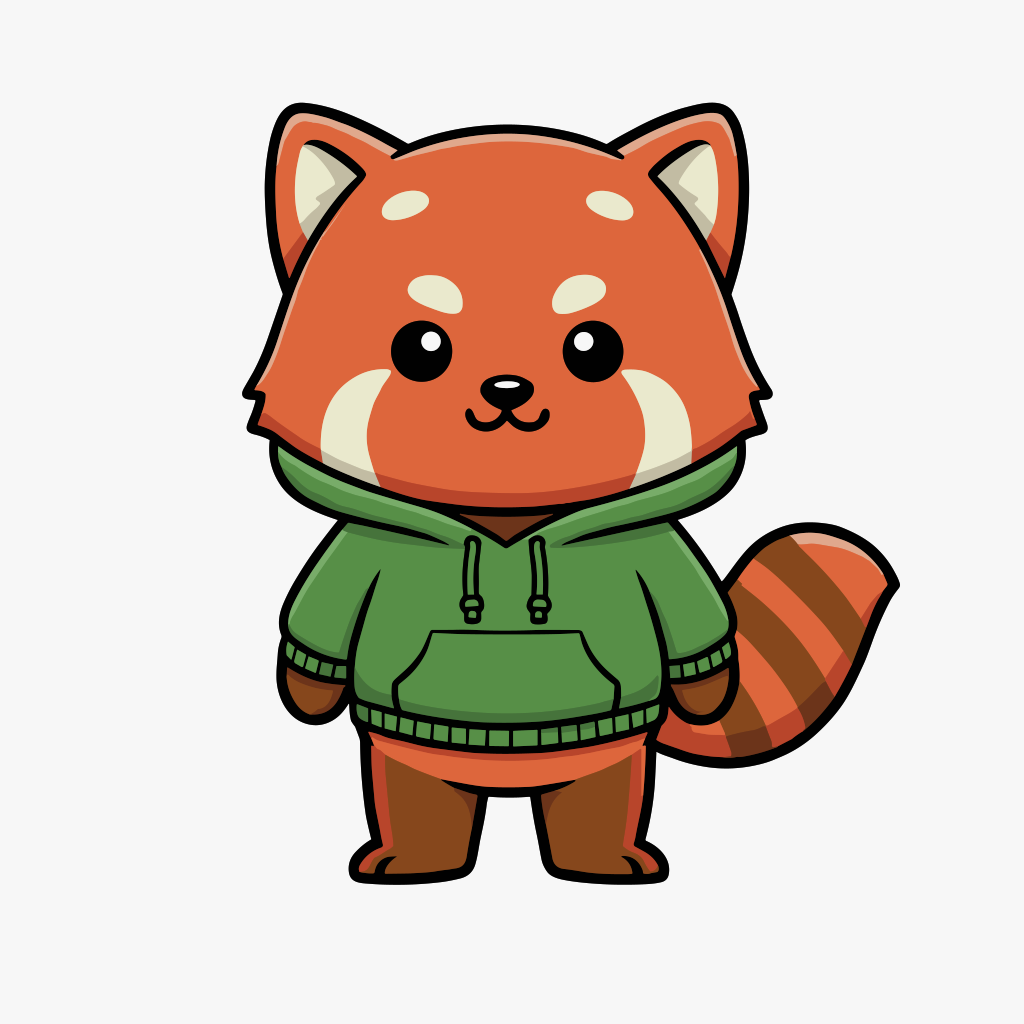
Your anchor image is the single source of truth for your mascot. Every future generation will be measured against this image.
Choose or create your anchor pose
Ideal anchor image characteristics:
- Front-facing or 3/4 view (clear visibility of features)
- Neutral pose (standing, sitting upright)
- Simple, even lighting (no dramatic shadows)
- Full body visible (no cropping)
- Plain background (white, gray, or simple gradient)
If you don’t have a mascot yet:
- Write a simple character description (e.g., “a friendly red panda in a green hoodie”)
- Generate 3-5 variations in your AI tool
- Pick the cleanest, most versatile result as your anchor
- Optional: If your image is not 1024x1024, upscale it!
This is the anchor image for “Pandi”:
Step 2: Create Your Reusable JSON Prompt System
This is the core of consistency. Instead of rewriting prompts, you’ll assemble them from reusable blocks.
The three essential prompt blocks:
1. Character Prompt (never changes)
{
  "character": "A curious red panda mascot named Pandi, wearing a blue utility vest with orange trim, white gloves, and brown boots"
}
2. Pose Prompt (changes per image)
{
  "pose": "Standing upright, waving with right paw, slight tilt of head, friendly smile"
}
3. Style Prompt (changes per art style)
{
  "style": "Flat SVG vector art, clean black outlines, 2px stroke weight, flat colors, minimal shading, isometric perspective"
}
Combine prompt blocks for each generation:
Full prompt structure:
{
  "character": "YOUR_CHARACTER_DESCRIPTION",
  "pose": "YOUR_POSE_DESCRIPTION",
  "style": "YOUR_STYLE_RULES"
}
Practical prompt writing tips:
For character prompts:
- Be specific about species, colors, and signature items
- Include clothing details: color, style, material
- Mention distinguishing features: “white belly patch,” “striped tail,” “large ears”
For pose prompts:
- Use clear action verbs: “waving,” “jumping,” “pointing”
- Specify direction: “with right paw,” “head turned left”
- Include emotion: “excited expression,” “confused look,” “proud stance”
- Keep it concise: one sentence maximum
For style prompts:
- State the format first: “Flat SVG,” “3D render,” “Pixel art”
- Define line treatment: “clean outlines,” “no outlines,” “rough sketch”
- Specify color treatment: “flat colors,” “gradient shading,” “cel shading”
- Mention perspective: “front view,” “isometric,” “side profile”
Use the interactive prompt generator:
The tool below helps you build prompts using this exact system. Fill in each section, and it will generate the JSON for you to copy.
JSON Output
{
  "style": "Flat SVG, clean outlines, friendly proportions, minimal shading",
  "character": "A curious red panda mascot wearing a utility vest",
  "pose": "Standing, waving with one paw, slight tilt of the head"
}
Step 3: Build Your Reference Pack (Test Suite)
A reference pack tests whether your system works across different scenarios. Think of it as a quality control suite.
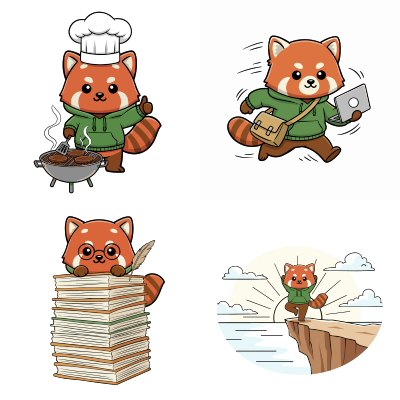
Generate these 5 essential test poses:
- Anatomy test: Full body, action pose (jumping, running)
- Expression test: Close-up of face showing emotion (happy, surprised)
- Prop test: Interacting with an object (holding sign, using tool)
- Outfit test: Different clothing or accessories
- Environment test: Mascot in a setting (office, outdoors)
Generate each test pose using this exact workflow:
For each pose in your test suite:
- Upload your anchor image as the first reference
- Write a specific pose prompt
- Generate 3-4 variations
- Select the best result that maintains consistency
- Save it!
Quality check each result:
- ✅ Proportions match the anchor (head size, body shape)
- ✅ Colors match your brand palette
- ✅ Line weight and style are consistent
- ✅ Signature features are recognizable
- ❌ If any check fails, adjust your base prompt and start over
This is Pandi’s complete reference pack:
Step 4: Generate Your Color Palette Reference Image
Text color descriptions are unreliable. Instead, create a visual palette reference that the AI can see.
Your palette image should include:
- Primary color (main body/fur color)
- Secondary colors (clothing, accessories)
- Accent colors (details, highlights)
- Neutral colors (outlines, shadows, background)
Use the OKLCH method for consistent tones:
The interactive tool below creates graduated tones for each color while preserving hue. This gives you lighter and darker variants for shading.
Workflow:
- Enter your brand hex colors
- Adjust the number of tone steps (5-7 works well)
- Generate the palette image
- Download the PNG
- Save it for future use!
How to use your palette image:
For every generation:
- Upload anchor image (first reference)
- Upload palette image (second reference)
- Write your modular prompt
- Generate
The AI will match colors from your palette image, eliminating color drift.
Generated Palette
Step 5: The Generation Workflow
Follow this exact sequence for every mascot image you create.
Image generation checklist:
✅ Anchor reference image uploaded
✅ Palette reference image uploaded
✅ Character prompt selected/copied
✅ Pose prompt written
✅ Style prompt selected/copied
✅ Combined JSON prompt formatted correctly
Step-by-step generation process:
1. Prepare references
Upload: references/anchor/mascot-name_anchor.png
Upload: references/palette/mascot-name_palette.png
2. Assemble your prompt
Copy your character prompt and style prompt. Write a new pose prompt. Then combine into a single JSON.
3. Generate 4 variations
/imagine [anchor image] [palette image] {"character":"...","pose":"...","style":"..."}
--ar 1:1 --v 6.0 --style raw
4. Evaluate results Compare each result to your anchor image. Ask:
- Is the body shape consistent?
- Are the colors exact matches?
- Are signature features present?
- Does the style match the reference pack?
5. Select and save Pick the best variation, upscale it, and save it!
Step 6: Quality Control Checklist
Before adding any image to your library, verify it passes all these checks:
Visual consistency checks:
- Silhouette: Does the outline match the anchor proportions?
- Color accuracy: Use a color picker to verify hex codes match your palette
- Feature preservation: Are all signature features present and correctly placed?
- Style match: Does rendering style match your reference pack?
Common issues and fixes:
Problem: Mascot looks “off” but can’t identify why
- Solution: Overlay your anchor image at 30% opacity for comparison
Problem: Colors are close but not exact
- Solution: Increase or decrease palette image size (= more steps). Both might work.
Problem: Proportions drift in action poses
- Solution: Describe the proportions of your character in more detail. Specify arm length, leg length, head size etc.
Problem: Signature features missing
- Solution: List features explicitly in character prompt: “always include white belly patch.”
Problem: Action poses lose character identity
Cause: Dynamic poses emphasize motion over character features Solution:
- Start with simpler action poses
- Build complexity gradually
- Add “maintain all character features visible” to pose prompt
Problem: Style inconsistency across batch
Cause: Style drift over many generations Solution:
- Always use the same image as your starting reference.
- Optimize your styling prompt and describe the exact behavior that is drifting in more detail. Example: Use thick black outlines.
- Review batch as a whole, regenerate outliers
Scaling Beyond 100+ Poses
When your library grows large, add these advanced practices:
Create pose categories:
- Foundational: Basic poses (standing, sitting, walking)
- Emotional: Expression-focused poses (happy, sad, confused)
- Contextual: Scene-specific poses (working, celebrating, error)
- Seasonal: Holiday/event variations
Build a pose style guide:
Document patterns that work:
- “Running poses: tilt body 15°, show both feet off ground”
- “Holding objects: always use right paw, grip at 45° angle”
- “Facial expressions: ears tilt with emotion direction”
Create generation templates:
For common scenarios:
- Error page template (character looking confused + technical object)
- Success page template (character celebrating + checkmark)
- Loading state template (character working + progress indicator)
Recap: Your Consistency System
You now have a complete pipeline:
- Anchor image: Single source of truth
- Reference pack: Quality control suite (5 test poses)
- Reusable prompts: JSON prompt blocks (character + pose + style)
- Palette image: Visual color reference
- Generation workflow: Step-by-step process
- Quality checklist: Approval criteria
- Batch system: Scale to hundreds of poses
The key is discipline: use references every time, follow the checklist, and trust the process over individual creative tweaks. Your mascot will stay consistent, recognizable, and production-ready across your entire application.