Where to Place a Mascot in Your App
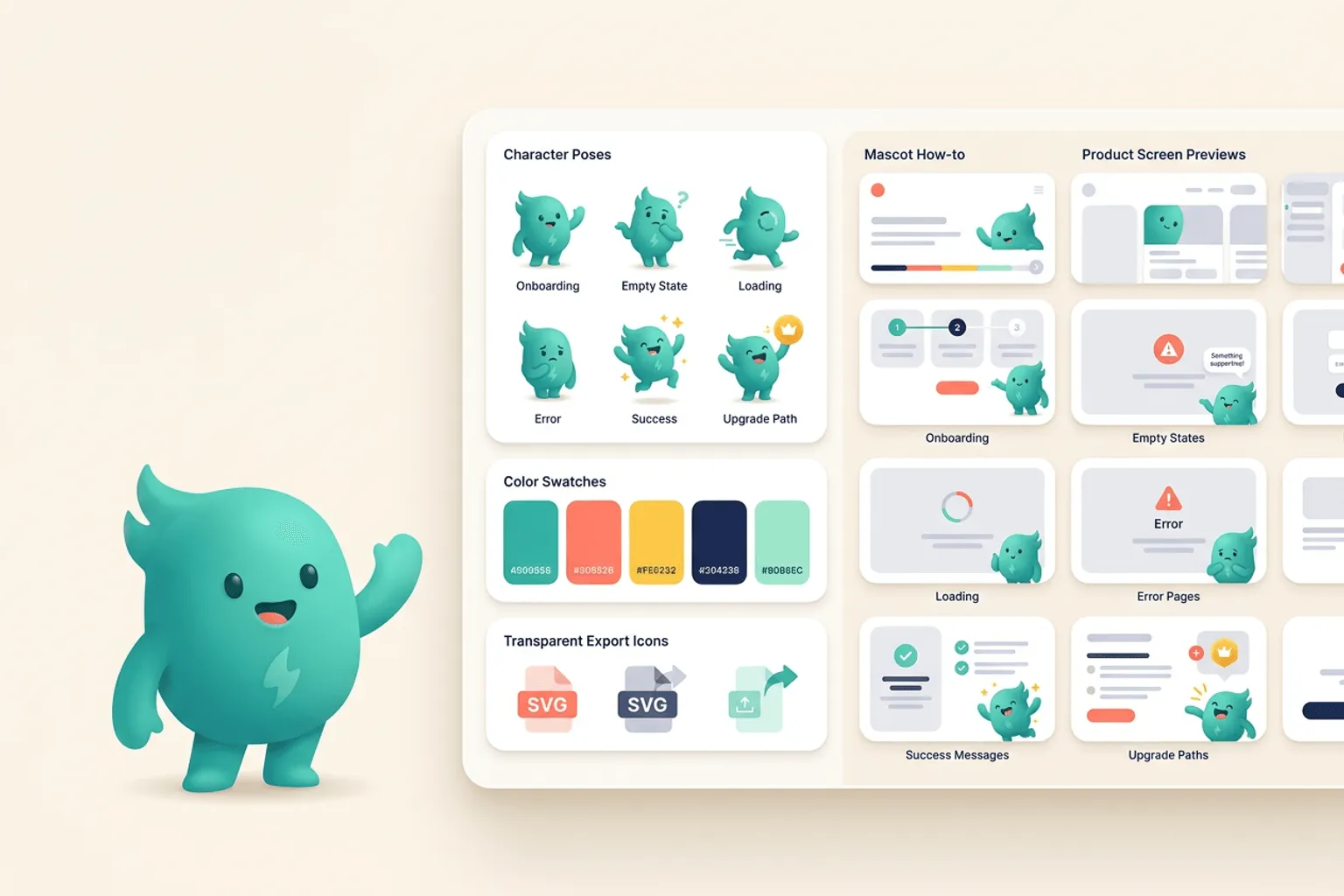
A practical map of the product screens where mascots help most: onboarding, empty states, loading, errors, success, and upgrade paths.
Quick Answer
Core idea: Mascots belong in moments where users need orientation, reassurance, celebration, or recovery.
- Do not place mascots everywhere. Use them where emotion or explanation is useful.
- The best first placements are onboarding, empty states, errors, and success screens.
- Each placement should use a pose that matches the user’s state of mind.
Onboarding and first-run screens
A mascot can make first-run onboarding feel less like paperwork. Use a welcoming pose, a pointing pose, or a checklist pose to guide users through setup. Keep the copy short and let the character carry warmth, not instruction overload.
The mascot should never hide the primary action. Place it near the supporting text or illustration area so the button and form remain obvious.
If you want to learn more about app mascot placement, read App Mascot Examples: Patterns Product Teams Can Reuse next. App Onboarding Mascot Examples and Patterns is also useful when you are mapping the same mascot system across product and marketing.
Empty states and waiting moments
Empty states are perfect mascot territory because they combine explanation and emotion. A blank dashboard can feel like failure; a calm mascot with a clear next step can make it feel like the beginning. Loading and processing states can also use light character moments if they do not slow the user down.
Use the pose to describe what happens next: searching, building, importing, waiting, or celebrating progress.
If you want to learn more about applying this idea in a real product workflow, Mascots for SaaS: Product Moments That Benefit From a Character is a practical next step.
Errors, success, and upgrades
Error screens need empathy, not clown energy. Choose a mascot pose that acknowledges the issue and points toward the fix. Success screens can be more expressive, especially after a user completes a meaningful task. Upgrade screens should feel helpful and aspirational rather than manipulative.
Across all placements, the mascot should make the product feel clearer. If it adds visual weight without improving comprehension, remove it.
Implementation Checklist
Use this checklist before publishing the mascot assets. It keeps the character useful across the product instead of turning it into a one-page illustration.
- Map product moments by user emotion.
- Pick one mascot pose per moment.
- Keep primary actions visually dominant.
- Review screens on mobile so the mascot does not crowd the UI.
How to Think About App Mascot Placement
This longer-form guide is for product designers deciding where a mascot belongs inside an interface. The goal is to place mascot assets where they improve comprehension without cluttering high-frequency workflows. Placement matters more than charm. A mascot that appears in the wrong screen can make a serious workflow feel noisy, but the same mascot in onboarding, empty states, or confirmation moments can make the product easier to understand.
The practical question is not whether the mascot is cute. The practical question is whether it helps people understand, remember, or complete something that matters. A strong mascot system should make the next asset easier to create, not harder.
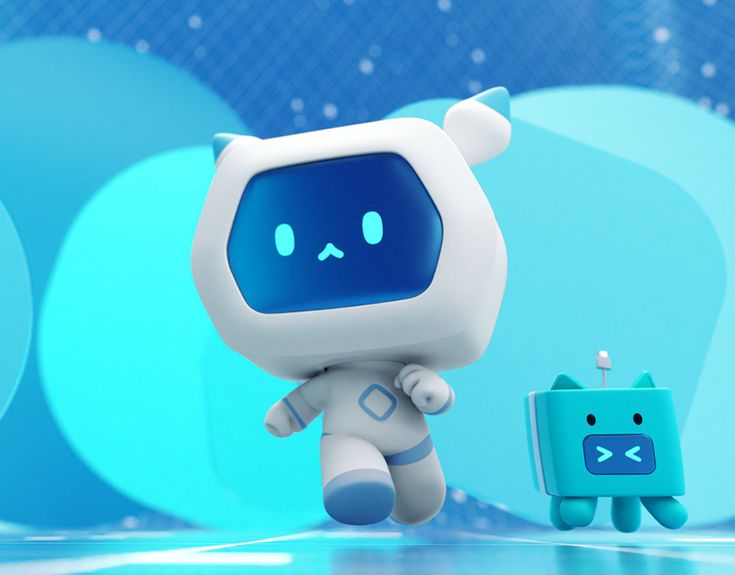
For You Onboarding on Pinterest. The onboarding pin is a useful example of character placement that supports a guided product moment.
Build the System Before You Polish the Moment
Start with low-density moments
Mascots are safest in onboarding, empty states, success pages, illustration slots, loading states, help panels, and marketing-to-product handoff screens. These areas usually have room for visual guidance and benefit from a friendly anchor.
Protect operational screens
Dashboards, tables, editors, billing flows, and admin surfaces need concentration. In those areas, keep mascots small, optional, or absent unless they communicate status in a way text cannot. The mascot should never compete with controls.
Use pose, scale, and distance as tone controls
A large waving mascot feels welcoming. A small thinking mascot in a sidebar feels like a helper. A celebratory mascot with confetti feels like a reward. Placement is not only where the image appears; it is how much emotional volume it brings.
What to Notice in the Pinterest Reference
Use Pinterest as a research board, not as a source to copy. The goal is to notice the design decisions that make a character usable across contexts, then translate those decisions into your own brand system.
- Look at how the character stays tied to the screen’s purpose.
- Notice the amount of whitespace around the character.
- Check whether the illustration still lets the next action remain obvious.
Common Mistakes to Avoid
- Putting a mascot next to every empty space just because the asset exists.
- Using a playful pose on a critical error or payment failure.
- Scaling the mascot differently on every screen without rules.
Production Checklist
- Define approved placement zones before generating poses.
- Set maximum sizes for mobile and desktop.
- Pair every mascot moment with one clear user action.
- Audit screens quarterly and remove decorative appearances.
How to Measure Whether It Worked
Treat the mascot like a product asset. Once it ships, review whether it improves clarity, recognition, speed, or reuse. The most useful metrics for this article are:
- CTA clicks on illustrated empty states
- Task completion time on mascot-supported flows
- User feedback on confusing screens
- Design system compliance across product areas
Create mascot poses for the screens that need them
svgapp helps you generate production-ready mascot assets for onboarding, empty states, errors, and success moments.
Create Your Mascot