
Generate Product Mascots in Codex with the svgapp MCP
Connect Codex to the svgapp MCP server and generate reusable mascots, UI poses, transparent assets, and illustrations directly from your coding workflow.

Quick answer
Add svgapp as a remote MCP server in Codex, point it to https://web.svgapp.ai/mcp, and keep your MCP token in the SVGAPP_MCP_TOKEN environment variable. Codex can then create a reusable mascot, generate consistent poses for specific components, poll asynchronous jobs, and integrate approved assets into the repository.
Connect Codex to svgapp
Generate a token from Settings → Integrations → MCP inside svgapp. In the shell where you run Codex:
export SVGAPP_MCP_TOKEN="YOUR_SVGAPP_MCP_TOKEN"
codex mcp add svgapp \
  --url https://web.svgapp.ai/mcp \
  --bearer-token-env-var SVGAPP_MCP_TOKEN
You can also add the server directly to ~/.codex/config.toml:
[mcp_servers.svgapp]
url = "https://web.svgapp.ai/mcp"
bearer_token_env_var = "SVGAPP_MCP_TOKEN"
Keep the environment variable available to the process that launches Codex. Do not put the token in the repository or in svgapp.conf.json.
The live endpoint accepts MCP requests over Streamable HTTP. Opening it in a browser produces 405 Method Not Allowed because a browser sends GET; Codex sends authenticated POST requests.
Give Codex a safe first task
Start with discovery and planning rather than generation:
Use the svgapp MCP for this repository.

Check the project root for svgapp.conf.json. Read it when valid; otherwise call
init_svgapp_config and save the result. Never write credentials to that file.

Inspect the frontend and identify three screens where a mascot would clarify an
action or state. Summarize the current palette and visual style. Propose a mascot
role and asset plan, but do not generate or edit files yet.
This keeps the initial Codex diff empty while you approve the character’s job and placements.
Create a reusable mascot
After approving the plan:
Read svgapp.conf.json. If it lacks a suitable colorPaletteId, call
create_color_palette using the application's real design tokens and merge the
returned configPatch.

Call create_mascot for a reusable product character that fits this codebase's UI.
Use a simple silhouette, no text or third-party logos, and enough clear space for
small interface placements.

Merge configPatch.activeMascotId into svgapp.conf.json. Poll
get_generation_status until completed. Return the stable URL and wait for review;
do not edit UI code yet.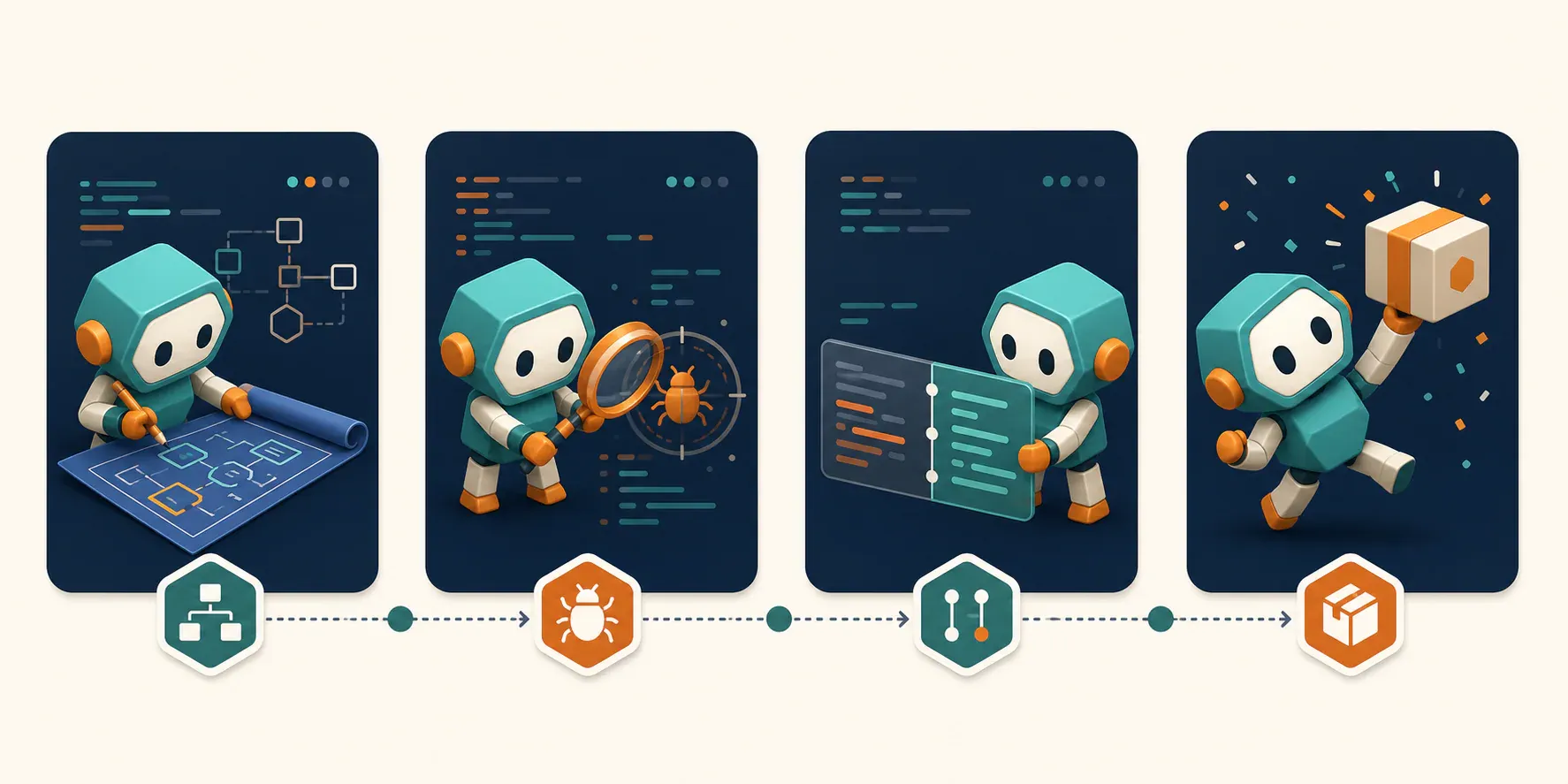
Generate assets against real components
Once the base character is approved, let Codex inspect the component before generating the pose:
Review the empty-state component in this repository. Explain the user goal, the
primary action, the available image dimensions, and whether transparency is needed.

Then read activeMascotId from svgapp.conf.json and call generate_mascot_pose for
that exact state. The pose should guide attention toward the real action without
containing text or recreating the UI.

Poll get_generation_status. If necessary, call remove_image_background and poll
again. Show the completed URL and proposed component diff before editing.
This grounds the prompt in the layout Codex can actually see, which produces a more useful asset than a generic “happy mascot” request.
Run a reviewable multi-screen workflow
For several screens, ask Codex to separate planning, generation, and integration:
Audit onboarding, empty, recoverable error, success, and help surfaces.

Phase 1: return a table of component paths, user needs, pose directions, target
sizes, and transparency requirements. Make no changes.

Phase 2: after approval, generate one pose at a time with activeMascotId and poll
each generation until completed. Show every result.

Phase 3: after asset approval, integrate the stable URLs, preserve accessible text
and controls, run the relevant build/tests, and summarize the changed files.
Codex can handle the repository work while svgapp handles character continuity and asset generation.
Recover generations and expand the system
Use list_recent_generations when a task loses its generation ID. Use list_mascots when the config lacks an active mascot. Choose generate_composition for standalone landing-page art that does not reuse the mascot, and create_mascot_animation only when the interface genuinely benefits from motion.
Every creation tool returns a stable placeholder-backed URL immediately. Poll get_generation_status until the job is complete before downloading or treating the asset as final.
Troubleshooting
Codex cannot see the server
Confirm the MCP entry in ~/.codex/config.toml, restart Codex after changing it, and ensure SVGAPP_MCP_TOKEN exists in the environment that launches Codex.
The endpoint returns 405 in a browser
That is expected for GET. The MCP server is available at the correct URL and expects authenticated POST requests from the MCP client.
A pose looks like a different mascot
Check that svgapp.conf.json contains the approved activeMascotId and that Codex called generate_mascot_pose, not create_mascot.
Codex downloads a placeholder
Creation is asynchronous. Poll get_generation_status using the returned generationId until the status is completed.
Related setup guides
Generate your app mascot from Codex
Connect svgapp MCP and let Codex plan, generate, and integrate consistent visual assets in your repository.
Open svgapp