
Generate App Mascots in Cursor with the svgapp MCP
Connect Cursor to the svgapp MCP server, configure token authentication, and generate reusable mascots and UI-specific poses without leaving your coding agent.
Quick answer
Connect Cursor to https://web.svgapp.ai/mcp, add your svgapp MCP token as a bearer header, and Cursor can create a reusable product mascot while it builds your application. The same integration can generate consistent poses for onboarding, empty states, errors, success screens, documentation, and launch pages.
The MCP endpoint uses Streamable HTTP and accepts POST requests. A normal browser GET returns 405 Method Not Allowed; that is expected and confirms that the endpoint is not a web page.
Add svgapp to Cursor
Create .cursor/mcp.json in the project for a repository-specific connection, or ~/.cursor/mcp.json for a global connection:
{
  "mcpServers": {
    "svgapp": {
      "type": "http",
      "url": "https://web.svgapp.ai/mcp",
      "headers": {
        "Authorization": "Bearer YOUR_SVGAPP_MCP_TOKEN"
      }
    }
  }
}
Generate a token from Settings → Integrations → MCP inside svgapp, replace the placeholder, and keep the token out of Git. Use the global file when you do not want a project config to contain a credential.
After saving the file:
- Open Cursor Settings and select Tools & MCP.
- Confirm that
svgappis enabled. - Approve the project server if Cursor asks for confirmation.
- In Cursor Agent, ask it to list the svgapp tools before generating anything.
Cursor CLI uses the same mcp.json configuration. You can inspect the connection with:
cursor-agent mcp list
cursor-agent mcp list-tools svgapp
Let Cursor initialize the project
The svgapp MCP keeps project-level visual choices in svgapp.conf.json. This file stores IDs for the selected art style, color palette, and active mascot—not the MCP token.
Start with this prompt:
Use the svgapp MCP for this project.

Check the project root for svgapp.conf.json. If it is missing or invalid,
call init_svgapp_config and save the returned configuration there.
Do not store credentials in the file.

Inspect the current UI and summarize the visual style, brand colors, and the
three product moments where a mascot would be most useful. Do not generate yet.
This gives Cursor enough context to plan the assets before spending a generation.
Generate a reusable mascot
Ask Cursor to create a character that belongs to the application it is editing:
Read svgapp.conf.json and inspect the app's existing colors and visual language.
If the config has no suitable colorPaletteId, create a palette from the product's
actual brand colors and merge the returned configPatch into svgapp.conf.json.

Then call create_mascot for a friendly geometric guide used in this app's
onboarding and empty states. Keep it readable at small UI sizes, use simple
shapes, avoid text and logos, and match the current interface.

Merge configPatch.activeMascotId into svgapp.conf.json. Poll
get_generation_status until the mascot is completed, then report the stable URL.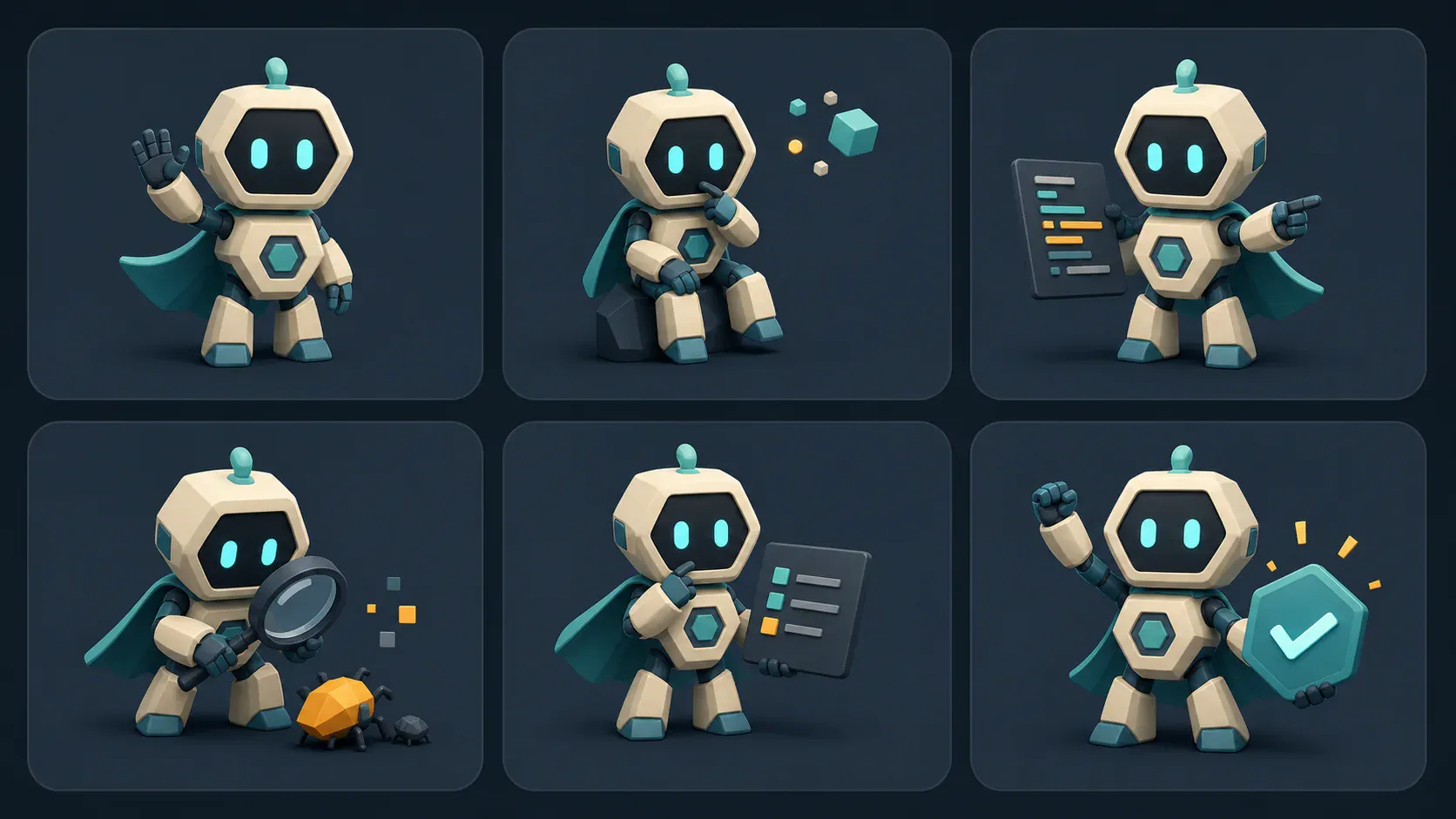
Generate poses for the screens Cursor is building
The base mascot establishes identity. Product screens usually need a specific pose. Ask Cursor to inspect the component and generate the asset around the screen’s job:
Read svgapp.conf.json and use activeMascotId.
Generate three consistent mascot poses with generate_mascot_pose:

1. Empty state: calmly points toward the primary create button.
2. Recoverable error: acknowledges the problem and guides attention to Retry.
3. Success: confirms completion without overpowering the next action.

Poll each generation with get_generation_status. If an asset needs to sit on
arbitrary card backgrounds, remove its background and poll that generation too.
Then add the completed stable URLs to the appropriate components with useful alt text.
Review the generated assets before allowing the agent to change production UI. Mascots should support the actual controls, not replace labels, validation, or accessible status text.
Recover and reuse existing work
If the project lost an ID, ask Cursor to use list_recent_generations or list_mascots. Once it has the correct mascot ID, it can update activeMascotId and continue generating consistent poses rather than starting a second character.
For a standalone hero or diagram that does not need mascot continuity, use generate_composition. For motion based on an existing mascot, use create_mascot_animation. Every creation is asynchronous, so keep the returned generation ID and use get_generation_status until completion.
Troubleshooting
Cursor shows an authentication error
Confirm that the URL is exactly https://web.svgapp.ai/mcp and that the header begins with Bearer . Refresh an expired token in mcp.json, then restart or toggle the server in Tools & MCP.
The server connects but no tools appear
Approve project-level MCP servers, restart Cursor after changing the JSON, and run cursor-agent mcp list-tools svgapp if you use Cursor CLI.
Cursor creates inconsistent characters
Make sure the agent reads svgapp.conf.json before each generation and uses activeMascotId with generate_mascot_pose. Calling create_mascot again creates a new character instead of a new pose.
Related setup guides
Generate your product mascot from Cursor
Connect svgapp MCP once, then let Cursor create consistent characters and interface-ready poses while it builds your app.
Open svgapp